
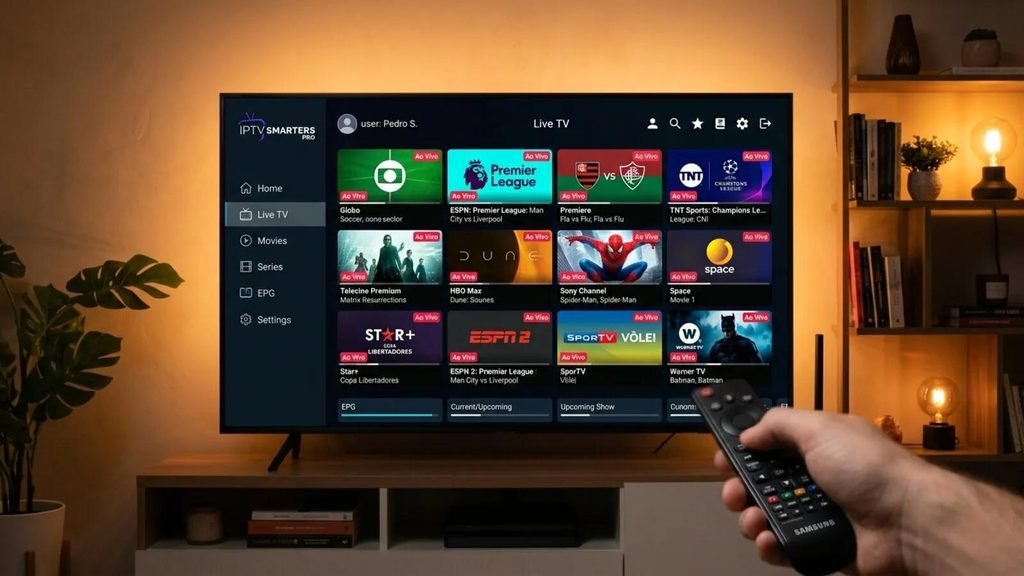
If you already have an IPTV Smarters UK IPTV subscription and want a clean, reliable way to watch it, IPTV Smarters UK is one of the most common searches you will see. The app is a media player that sits between your login details and your screen. It is not a provider, and it does not include any channels or on-demand content of its own.
This guide is for UK viewers who want a clear route from “I have my login details” to “it is working on my television”. You will learn what the app does, what you need before you start, where to find it on common devices, how to connect it with Xtream Codes or an M3U playlist, and how to fix the problems that trip most people up. If you are still choosing a service, UK IPTV Subscription is where our plans and guides live.
What Is IPTV Smarters UK?
IPTV Smarters is a media player application used to play content delivered over an internet connection. People in the UK often search for IPTV Smarters Pro UK, which usually refers to the Pro version of the player. Either way, the job is the same: you enter the details supplied by your IPTV provider, and the app presents that content in a tidy, remote-friendly interface.
The key point is simple. The player and the subscription are two separate things. The app displays what your subscription supplies, and without valid login details it has nothing to show.
What the app can typically do
Features vary by version, device and the data your provider supplies, but a good IPTV player UK viewers can use across screens generally offers:
- Live television sections, organised into categories.
- On-demand film and series sections, where your provider includes them.
- A programme guide (EPG), where your provider supplies the data.
- Favourites and search, so you can find things without endless scrolling.
- Support for more than one login or profile.
- Parental control options in some versions.
What Do You Need Before Setting Up IPTV Smarters UK?
Five minutes of preparation saves most of the frustration. Before you open the app, check the items in this table.
| Requirement | Why it matters | Practical tip |
|---|---|---|
| An active IPTV subscription | The app contains no content of its own | Confirm your subscription is active and in date |
| Your login details | The app needs them to connect | Have your Xtream Codes details or M3U link ready |
| A compatible device | Availability varies by device, model and region | Check the official store listing for your device |
| A stable internet connection | Streaming depends on your connection | A wired connection is steadier than weak Wi-Fi |
| Up-to-date device software | Older software can cause app problems | Install pending updates before you begin |
Which login details will you receive?
Providers usually supply one of two formats. The first is Xtream Codes details: a username, a password and a server URL. The second is an M3U playlist link, which is a single web address containing your playlist. Both are covered below, so keep whichever you were given close to hand.
How to Install IPTV Smarters UK on Different Devices
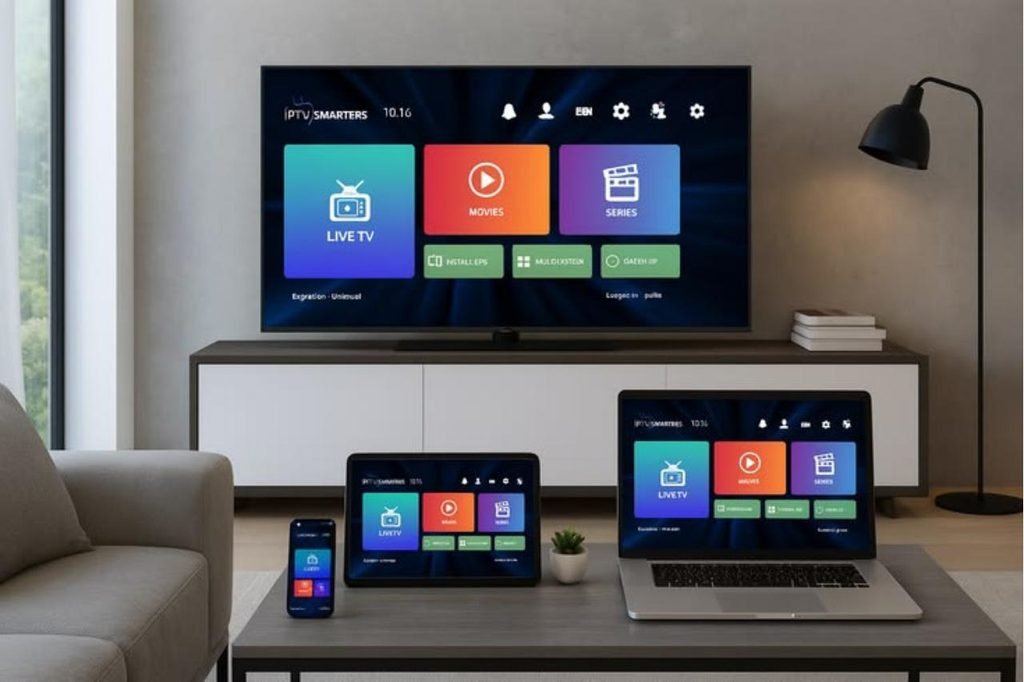
App availability changes by device, model, software version and region, and store listings can appear or disappear. For that reason, always install from the official store listing on your device or from the developer’s official website. Avoid third-party APK links and unverified download codes, which can put your device and your login details at risk.
| Device | Where to look | Worth knowing |
|---|---|---|
| Amazon Firestick | Search on the Fire TV home screen | Listings can change, so check what appears for your device |
| Android TV and Android boxes | Google Play Store on the device | Some boxes do not include the Play Store |
| Samsung and LG Smart TVs | Samsung apps section or LG Content Store | Depends on model, year and region |
| iPhone and iPad | The App Store | Check the developer name and listing details |
| Windows and Mac | The relevant app store or developer’s website | Use official sources only |
IPTV Smarters on Amazon Firestick
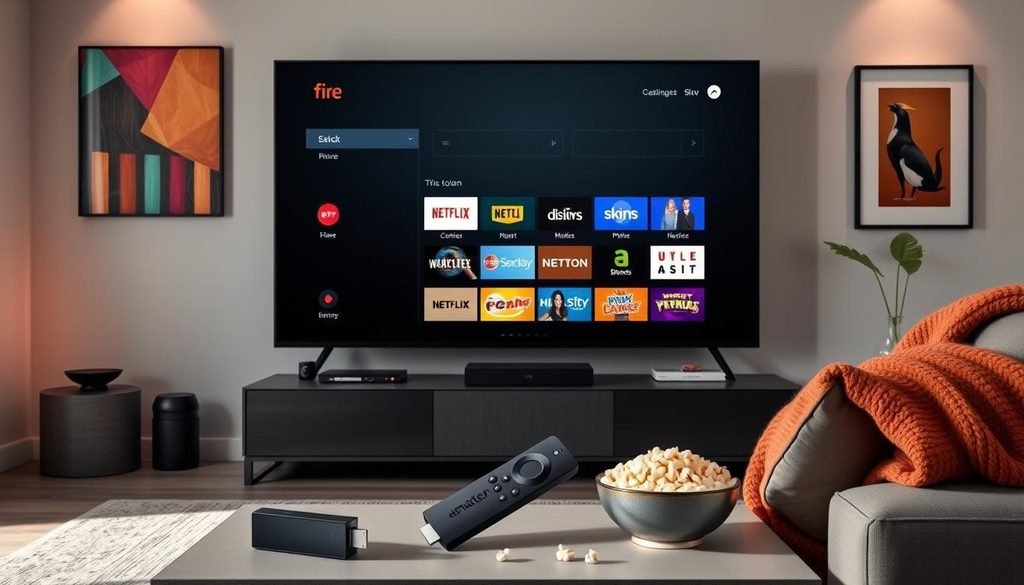
IPTV Smarters Firestick searches are among the most popular, and for good reason: the Fire TV remote makes the app comfortable to use on a large screen. Because availability can change, start with the simplest check.
- From the Fire TV home screen, open the search option and type the app name.
- If a listing appears, check the app name and developer, then select the option to get or download it.
- Open the app once installation finishes and accept any terms shown.
- Continue to the login steps further down this page.
If the app does not appear for your device or region, do not force it. Check the developer’s official website for current instructions, and steer clear of unofficial files or shared download codes. If you would rather not troubleshoot availability at all, an Android TV device or a supported Smart TV may be an easier route.
IPTV Smarters UK on Android TV and Android Boxes
IPTV Smarters UK On an Android TV device, open the Google Play Store, search for the app and install it from the official listing. It is the most straightforward route for most people.
Some generic Android boxes ship without the Play Store. If yours is one of them, resist the temptation to download files from random websites. Look for official guidance from the app’s developer instead, or consider a device with proper store access.
IPTV Smarters UK on Samsung and LG Smart TVs
An IPTV app for Smart TV is the tidiest setup of all, because there is no extra hardware. On a Samsung television, open the apps section and search. On an LG television, open the LG Content Store and search.
Availability depends on your model, its age and your region, and the app may appear under a slightly different name. If you cannot find it, a Firestick or Android TV device plugged into your television is a sensible alternative.
IPTV Smarters Pro UK on iPhone and iPad
Open the App Store, search for the app and check the developer details before installing. Phones and tablets are handy for testing your login details quickly, and for watching in rooms without a main television.
IPTV Smarters UK on Windows and Mac
For a computer, look in the relevant app store for your system, or use the developer’s official website. Stick to official sources only.
How to Configure IPTV Smarters UK Using Xtream Codes API
IPTV Smarters Xtream Codes is the login method most people use, and it is usually the quickest. Menu labels can differ slightly between versions and devices, but the process is broadly the same:
- Open the app and accept any terms or permissions it asks for.
- Choose the option to add a new user or profile.
- Select the login option that mentions Xtream Codes API.
- Enter a name for the profile, such as “Living Room”. This is only a label.
- Type the username and password exactly as supplied by your provider.
- Enter the server URL exactly as supplied, including the http:// or https:// start and any port number.
- Select the option to add the user, then wait while the app loads your content.
Take your time on steps five and six. A single extra space or a missing character is the most common reason a login fails. Copy and paste if you can, rather than typing by hand.
How to Add an M3U Playlist to IPTV Smarters
If your provider gave you an M3U link instead, the app can load that too. Look for the option to load a playlist or file or URL.
- Open the app and choose the option to add a new user or playlist.
- Select the playlist option that accepts a link.
- Give the playlist a name.
- Paste the full M3U link exactly as supplied.
- Add the playlist and wait for it to finish loading.
| Method | What you enter | Best for |
|---|---|---|
| Xtream Codes API | Username, password and server URL | Most viewers, as it is quick to set up |
| M3U playlist | A single playlist link | Providers who supply a link rather than separate details |
An M3U link usually contains your account details inside the address, so keep it private. If your provider supplies a separate programme guide address, you may need to add it in the app’s settings for the guide to display.
How to Improve IPTV Smarters Streaming Performance
No app can promise perfect playback, because results depend on your connection, your device and the stream itself. These steps give you the best chance of a smooth experience:
- Use a wired connection where possible, or place the device closer to your router.
- Reduce other heavy use on your network while you watch, such as large downloads.
- Restart your router, and then restart the streaming device.
- Keep the app and the device software up to date.
- Clear the app’s cache from your device settings if it feels sluggish.
- Close other apps running in the background on the same device.
- Remember that higher-quality streams, including 4K where available, need more from your connection than standard definition.
If you use a VPN, try switching it off briefly to see whether it affects speed. Whether you use one is your own choice, as the app does not require it.
Common IPTV Smarters UK Problems and Solutions
Most issues with IPTV Smarters UK setups fall into four groups. Work through the fixes in order, starting with the simplest.
IPTV Smarters Not Loading Channels
- Check that your subscription is active and has not expired.
- Confirm your internet connection works by loading another app or website.
- Re-check the username, password and server URL for typing errors.
- Remove the profile, then add it again from scratch.
- Restart the app and the device.
- If nothing changes, contact your provider, as the issue may be on the server side.
IPTV Smarters Buffering Problems
Buffering is usually down to the connection, the device or the stream, not the app alone. Start with the performance steps above: use a wired connection, restart your router, and reduce competing network use. For a deeper walkthrough, see our IPTV buffering fix guide.
EPG Not Showing
The programme guide depends on data from your provider, so it will not appear if that data is missing. Try these checks:
- Make sure the date, time and time zone on your device are correct for the UK.
- Refresh or reload the guide from the app’s settings.
- Check whether your provider supplies a separate guide address, and enter it if so.
- Remember that some channels may not have guide data at all.
IPTV Login Failed
- Check for stray spaces or characters in your details. Copy and paste if possible.
- Confirm you chose the right login type. Xtream Codes details will not work in the playlist option, and the reverse is also true.
- Check the server URL, including the http:// or https:// start and any port number.
- Make sure the subscription has not expired.
- Check whether too many devices are connected at once, as plans have limits on simultaneous connections.
Why Choose UK IPTV Subscription?
A player is only as good as the service behind it. UK IPTV Subscription is built for viewers in the United Kingdom who want a straightforward service and clear terms, and who like to know what they are signing up for. According to the service details, you get:
- 20,000+ live channels.
- 199,000+ movies and series.
- HD, Full HD and 4K where available.
- 24/7 customer support.
- A 24-hour free trial.
- A 7-day money-back guarantee.
- No automatic renewal.
- Compatibility with supported IPTV players and devices.
The free trial is a sensible way to test your device, your connection and your chosen player before committing. You can explore the available IPTV plans and see which suits your household. If you want to understand the trial first, our IPTV free trial UK article explains how it works.
Frequently Asked Questions About IPTV Smarters UK
What is IPTV Smarters UK used for?
It is used to play content supplied by your IPTV subscription. You add your login details to the app, and it displays live television, on-demand content and a programme guide where your provider includes them.
Is IPTV Smarters an IPTV provider?
No. IPTV Smarters is a media player, not a provider. It does not supply channels or on-demand content, so you need a separate subscription and login details.
Is IPTV Smarters free to download?
Check the store listing on your device for current details, as pricing and availability can change. Whatever the app costs, it does not include any content, so you will still need a subscription.
What is the difference between IPTV Smarters and IPTV Smarters Pro?
The names are often used interchangeably, and most people searching for IPTV Smarters Pro UK mean the Pro player. Always check the name and developer on the official store listing for your device.
Can I use IPTV Smarters on a Firestick?
Many people do. Search from the Fire TV home screen and install only from a listing you can verify. If it is not available for your device or region, check the developer’s official guidance rather than using unofficial files.
Is there an IPTV app for Smart TV?
Yes, an IPTV app for Smart TV may be available through the Samsung apps section or the LG Content Store, depending on your model, year and region. If it is not listed, use a Firestick or Android TV device instead.
Should I use Xtream Codes or an M3U playlist?
Use whichever format your provider supplied. Xtream Codes is usually quicker to set up, while an M3U link is useful when you have been given a single playlist address.
Why does IPTV Smarters say login failed?
The most common causes are typing errors, an extra space, the wrong login type, an incorrect server URL or an expired subscription. Re-enter your details carefully and confirm the subscription is active.
Can I use the same login on more than one device?
That depends on your plan. Installing the app on several devices is different from streaming on them all at once, which is limited by the number of simultaneous connections your plan allows.
Do I need a VPN to use IPTV Smarters?
The app does not require one. Using a VPN is your own choice, and it can affect connection speed, so test with it switched off if you are troubleshooting.
Final Thoughts
IPTV Smarters UK setup is straightforward once you know the order of play: confirm your subscription, choose a trustworthy install route for your device, then enter your Xtream Codes details or M3U link carefully. Most problems come down to a typing slip, the wrong login type or a weak connection, and all three are easy to fix.
Remember what the app is, too. It is a player, so the quality of your experience also depends on the service behind it. If you are ready to put your setup to the test, take a look at the IPTV subscription plans for UK viewers, start with the 24-hour free trial, and see how it feels on your own screen.